> ## Documentation Index
> Fetch the complete documentation index at: https://docs.withrealm.com/llms.txt
> Use this file to discover all available pages before exploring further.
# Get more out of Chat
> Research mode, filters, file attachments, and other features
## Keyboard shortcuts
Several shortcuts can help you work more efficiently:
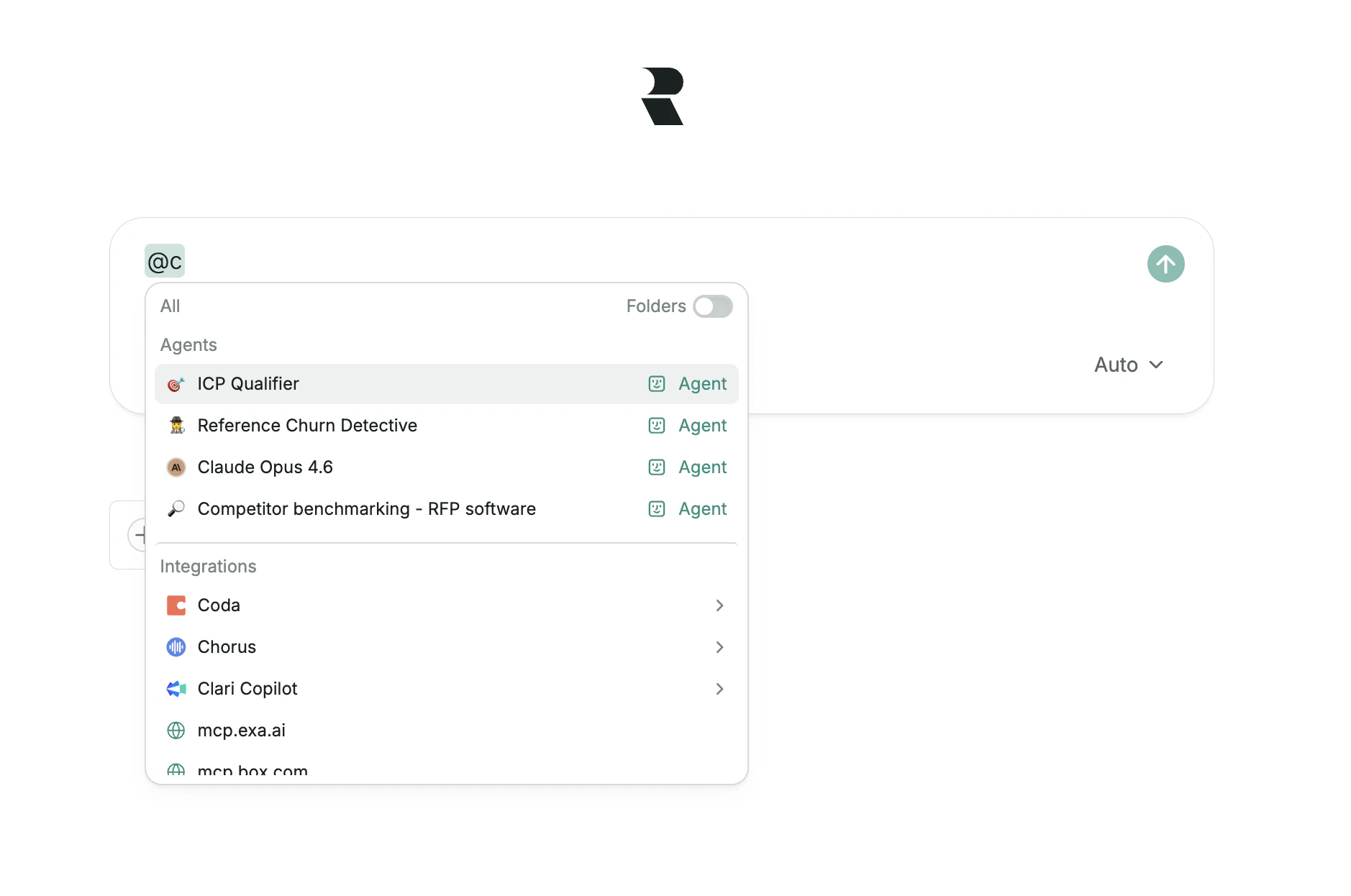 * **`@` shortcut**: Type `@` anywhere in the chat input to open a menu for switching agents, selecting tools, or attaching context. You can tag agents, AI models, tools, data sources, folders, and individual documents. Use the arrow keys to navigate the menu, or keep typing to filter results.
 * **`/` shortcut**: Type `/` in the chat input to open the command menu. From there, you can insert formatting blocks like text, headings, bullet lists, ordered lists, code blocks, blockquotes, and dividers.
* **Navigate to chat**: Press `Cmd+K` (or `Ctrl+K`) to jump directly to the Chat view from anywhere in the app.
* **Cancel a response**: Press `Esc` to stop a response that is being generated.
## Bookmark a conversation
Pin important conversations to the top of your History sidebar so you can return to them without searching.
Click the bookmark icon in the chat header or next to a conversation in the History sidebar. Bookmarked conversations appear in a **Bookmarked** section at the top of the sidebar. Click the icon again to remove the bookmark.
## Research mode
* **`/` shortcut**: Type `/` in the chat input to open the command menu. From there, you can insert formatting blocks like text, headings, bullet lists, ordered lists, code blocks, blockquotes, and dividers.
* **Navigate to chat**: Press `Cmd+K` (or `Ctrl+K`) to jump directly to the Chat view from anywhere in the app.
* **Cancel a response**: Press `Esc` to stop a response that is being generated.
## Bookmark a conversation
Pin important conversations to the top of your History sidebar so you can return to them without searching.
Click the bookmark icon in the chat header or next to a conversation in the History sidebar. Bookmarked conversations appear in a **Bookmarked** section at the top of the sidebar. Click the icon again to remove the bookmark.
## Research mode
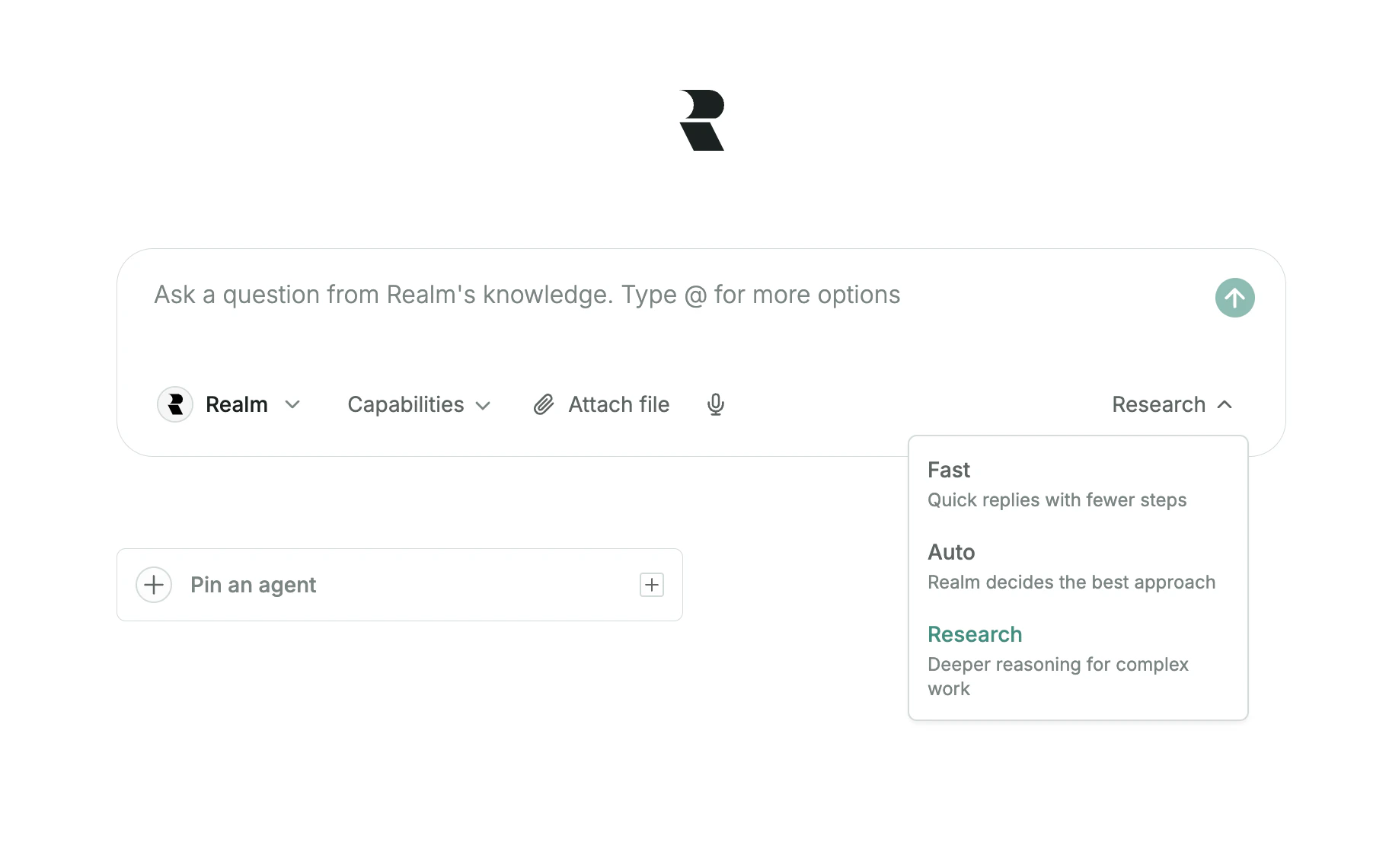 Research mode performs an in-depth, multi-step analysis for complex queries. It breaks down your request, creates a research plan, and consults numerous sources to compile a comprehensive answer.
Synthesize information from many sources into a single, coherent answer
Break down complex questions into sequential sub-tasks
Generate structured reports with citations from hundreds of sources
### How research mode works
Research mode breaks down your complex request into smaller, sequential tasks.
A detailed research plan is created to address each component of your query.
Specialized sub-agents perform tasks like searching, reading documents, and analyzing data.
All findings are compiled into a single, comprehensive report with structured, actionable insights.
### Example use cases
"Analyze all mentions of our competitors in customer calls and summarize key themes from the past quarter."
"Review all project updates across Linear, Slack, and documentation to create a comprehensive status report."
"Compile everything we know about customer X from all sources and identify gaps in our documentation."
Research mode may take longer than standard queries because it reads and analyzes many more sources to provide a comprehensive answer.
## Using filters in chat
For example, "How many HubSpot deals of type new business are in the stage building business case?" will automatically filter by data source (HubSpot), deal type (new business), and stage (building business case).
### Reviewing and editing filters
Research mode performs an in-depth, multi-step analysis for complex queries. It breaks down your request, creates a research plan, and consults numerous sources to compile a comprehensive answer.
Synthesize information from many sources into a single, coherent answer
Break down complex questions into sequential sub-tasks
Generate structured reports with citations from hundreds of sources
### How research mode works
Research mode breaks down your complex request into smaller, sequential tasks.
A detailed research plan is created to address each component of your query.
Specialized sub-agents perform tasks like searching, reading documents, and analyzing data.
All findings are compiled into a single, comprehensive report with structured, actionable insights.
### Example use cases
"Analyze all mentions of our competitors in customer calls and summarize key themes from the past quarter."
"Review all project updates across Linear, Slack, and documentation to create a comprehensive status report."
"Compile everything we know about customer X from all sources and identify gaps in our documentation."
Research mode may take longer than standard queries because it reads and analyzes many more sources to provide a comprehensive answer.
## Using filters in chat
For example, "How many HubSpot deals of type new business are in the stage building business case?" will automatically filter by data source (HubSpot), deal type (new business), and stage (building business case).
### Reviewing and editing filters
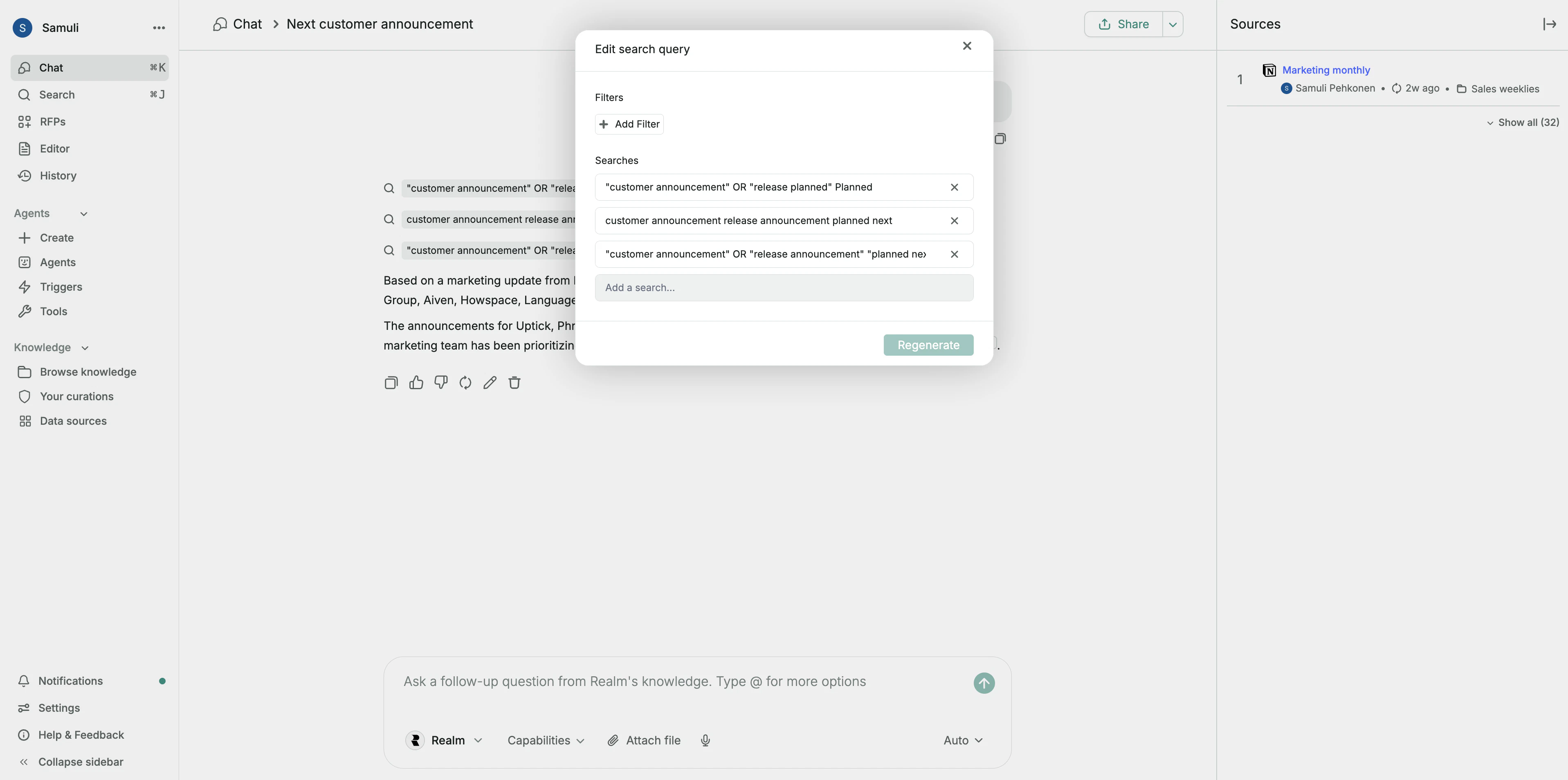 You can see what filters Realm chose to apply. If some of them are incorrect:
1. Check the filters shown above your results to see what was applied
2. Click on the pencil icon to modify any incorrect filters
3. After editing, rerun the query to get updated results
### Filtering by data source
You can narrow down your queries by telling Realm where to look. For example:
"Based on HubSpot, what's our history with customer Acme Corp?"
"List all support tickets from the customer Realm Technologies from the past 14 days"
"Summarize discussion from the #sales-gtm channel"
"Only include results from Acme company, exclude everything else"
Be specific in your queries to help Realm apply the right filters. Mention specific tools, include time ranges, name specific channels or entities, and specify document types when relevant.
## Special features
### Documents
You can see what filters Realm chose to apply. If some of them are incorrect:
1. Check the filters shown above your results to see what was applied
2. Click on the pencil icon to modify any incorrect filters
3. After editing, rerun the query to get updated results
### Filtering by data source
You can narrow down your queries by telling Realm where to look. For example:
"Based on HubSpot, what's our history with customer Acme Corp?"
"List all support tickets from the customer Realm Technologies from the past 14 days"
"Summarize discussion from the #sales-gtm channel"
"Only include results from Acme company, exclude everything else"
Be specific in your queries to help Realm apply the right filters. Mention specific tools, include time ranges, name specific channels or entities, and specify document types when relevant.
## Special features
### Documents
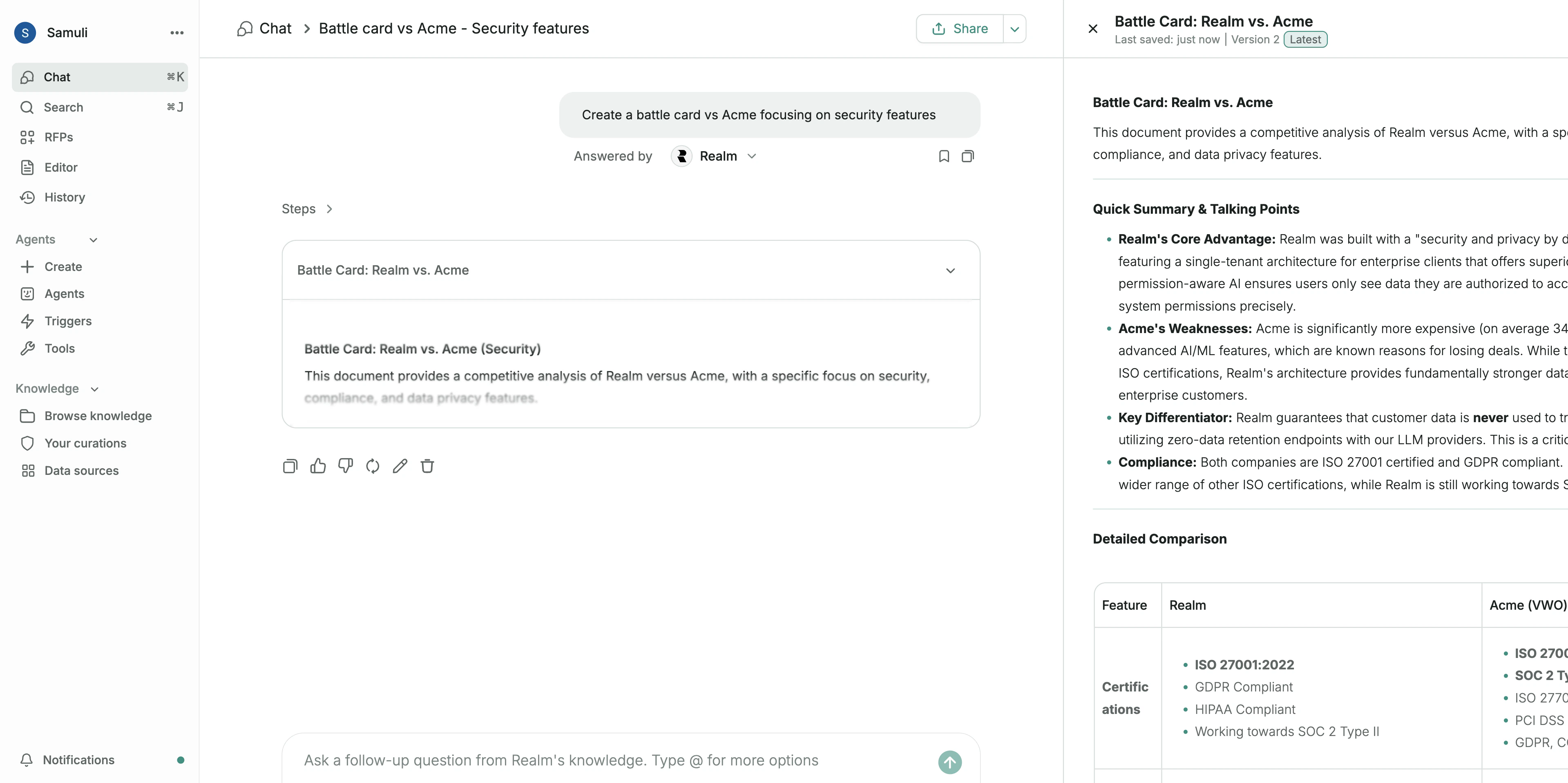 Simply ask the Realm Assistant to create a document such as a report, proposal, or brief for you. For example: "Create a battle card vs Acme focusing on security features" or "Draft a follow-up email to Jane Doe".
Once a document is generated, it opens in the Editor. Here, you can talk with your document to make iterative changes like altering the tone or adding a new section, or make manual edits yourself.
#### Exporting documents
Simply ask the Realm Assistant to create a document such as a report, proposal, or brief for you. For example: "Create a battle card vs Acme focusing on security features" or "Draft a follow-up email to Jane Doe".
Once a document is generated, it opens in the Editor. Here, you can talk with your document to make iterative changes like altering the tone or adding a new section, or make manual edits yourself.
#### Exporting documents
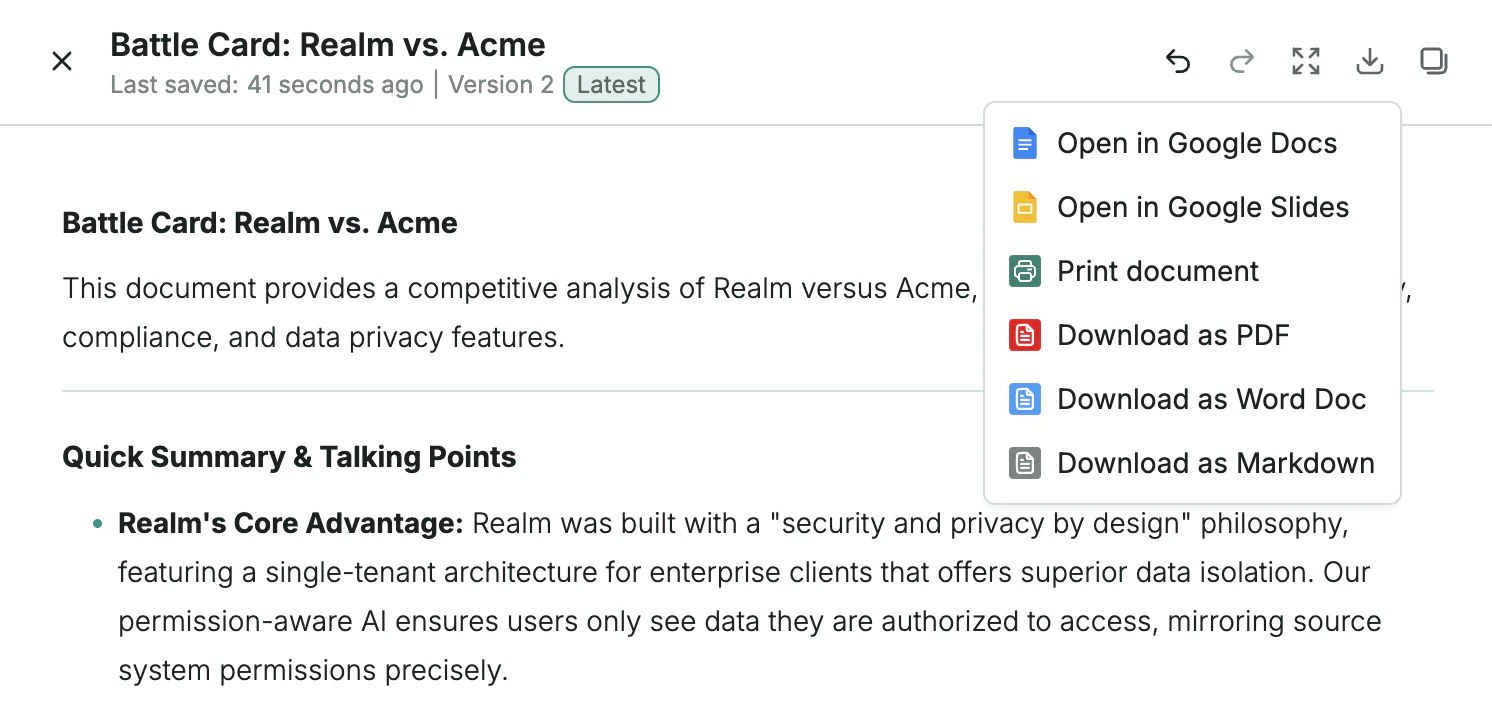 When you are satisfied with your document, you can export it to various formats, including Google Docs, PDF, Word, or Markdown.
Use the Editor to refine generated documents through conversation or direct editing before exporting.
### Data analysis
When you are satisfied with your document, you can export it to various formats, including Google Docs, PDF, Word, or Markdown.
Use the Editor to refine generated documents through conversation or direct editing before exporting.
### Data analysis
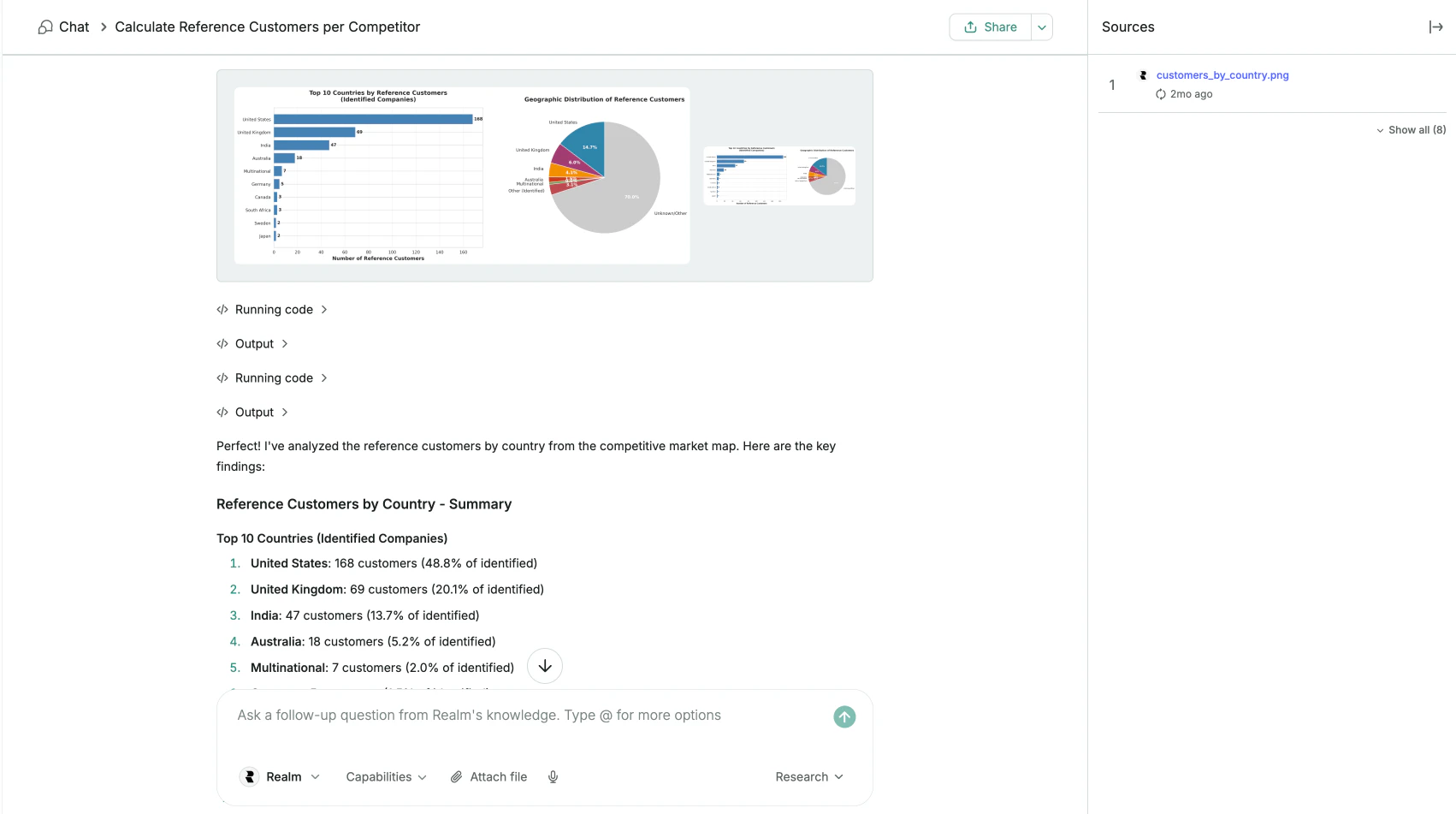 When working with spreadsheets, Realm can write code to analyze the data and draw graphs.
Select "Attach file" and attach a spreadsheet (XLSX, XLS, or CSV).
Click "Data Analysis" to enable the feature.
Ask Realm to analyze the data, for example: "Draw a graph of the total daily number of queries per day between the start of the year and now."
What you can do with Data Analysis:
* Generate charts and visualizations
* Calculate statistics and summaries
* Identify trends and patterns
* Create pivot tables and aggregations
### Support ticket resolution
If you're working with support tickets in tools like Zendesk or Freshdesk, you can ask Realm to suggest resolutions. Paste a link to the ticket in chat, and Realm will analyze the ticket content, search relevant knowledge base articles, and suggest a resolution.
This feature works best when you have comprehensive documentation and FAQs connected to Realm.
### Foreign language support
You can ask Realm questions in languages other than English. Realm searches for materials in the same language as your prompt, and responses are provided in that language. Cross-language search is also supported.
If a significant share of your knowledge base is in a foreign language, have your admins inform the Realm team. We can make significant optimizations that improve Realm's performance in a given language.
When working with spreadsheets, Realm can write code to analyze the data and draw graphs.
Select "Attach file" and attach a spreadsheet (XLSX, XLS, or CSV).
Click "Data Analysis" to enable the feature.
Ask Realm to analyze the data, for example: "Draw a graph of the total daily number of queries per day between the start of the year and now."
What you can do with Data Analysis:
* Generate charts and visualizations
* Calculate statistics and summaries
* Identify trends and patterns
* Create pivot tables and aggregations
### Support ticket resolution
If you're working with support tickets in tools like Zendesk or Freshdesk, you can ask Realm to suggest resolutions. Paste a link to the ticket in chat, and Realm will analyze the ticket content, search relevant knowledge base articles, and suggest a resolution.
This feature works best when you have comprehensive documentation and FAQs connected to Realm.
### Foreign language support
You can ask Realm questions in languages other than English. Realm searches for materials in the same language as your prompt, and responses are provided in that language. Cross-language search is also supported.
If a significant share of your knowledge base is in a foreign language, have your admins inform the Realm team. We can make significant optimizations that improve Realm's performance in a given language.