

Connecting Confluence (Cloud)
Install the Realm app from Atlassian Marketplace on the Confluence site you want to connect. Then, navigate to Atlassian Admin > Apps > Sites > Your Site Name. Then click Connected Apps, find the Realm app, click the three dots, and click Configure. You should then see the following page: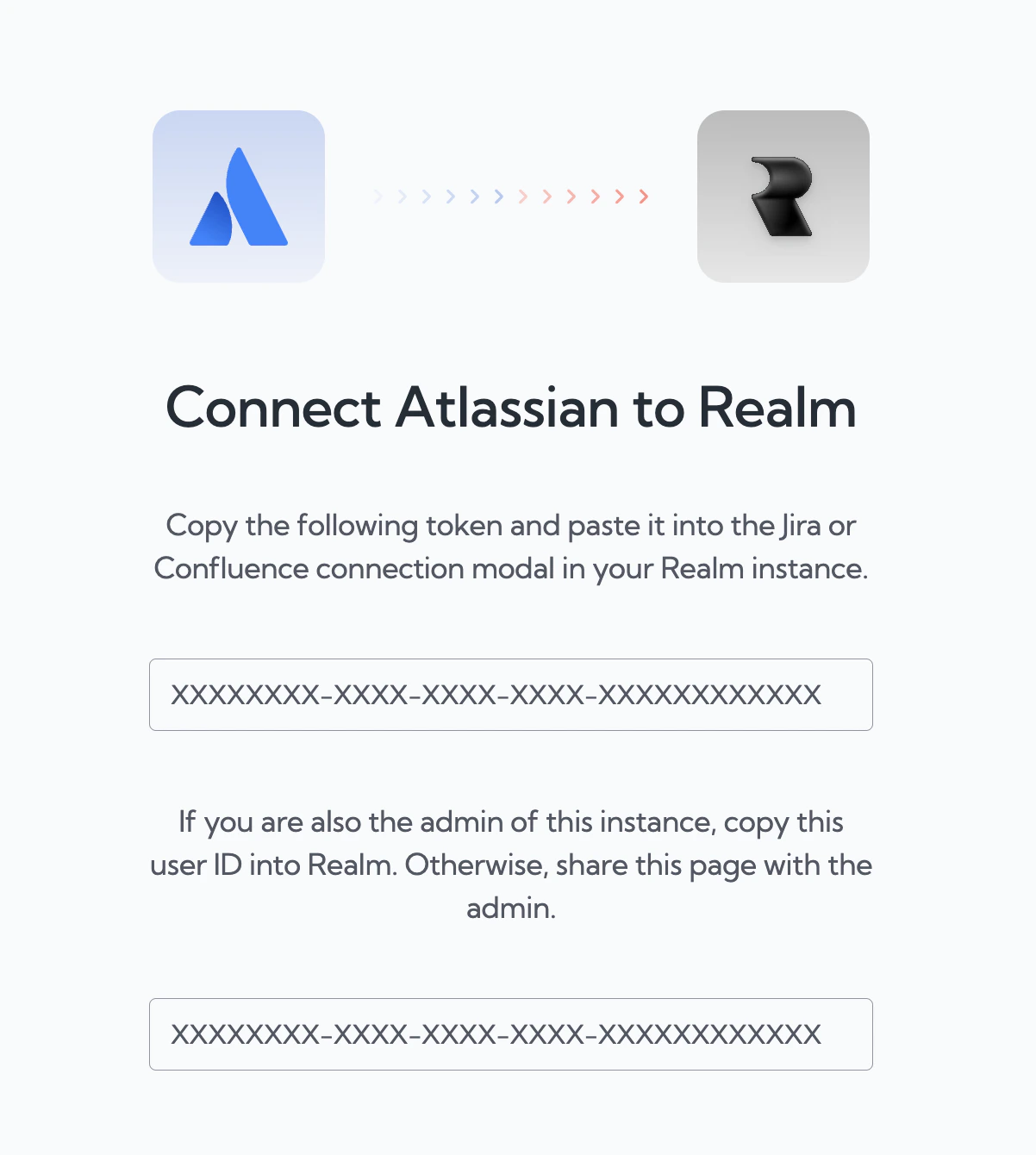
Copy the token from the Atlassian configuration page into Realm
Depending on your organization’s Atlassian settings, an admin may need to approve the app installation before it can be used.
What gets synced
Selecting spaces
After connecting, choose which Confluence spaces to sync. You can add or remove spaces at any time from the data source page.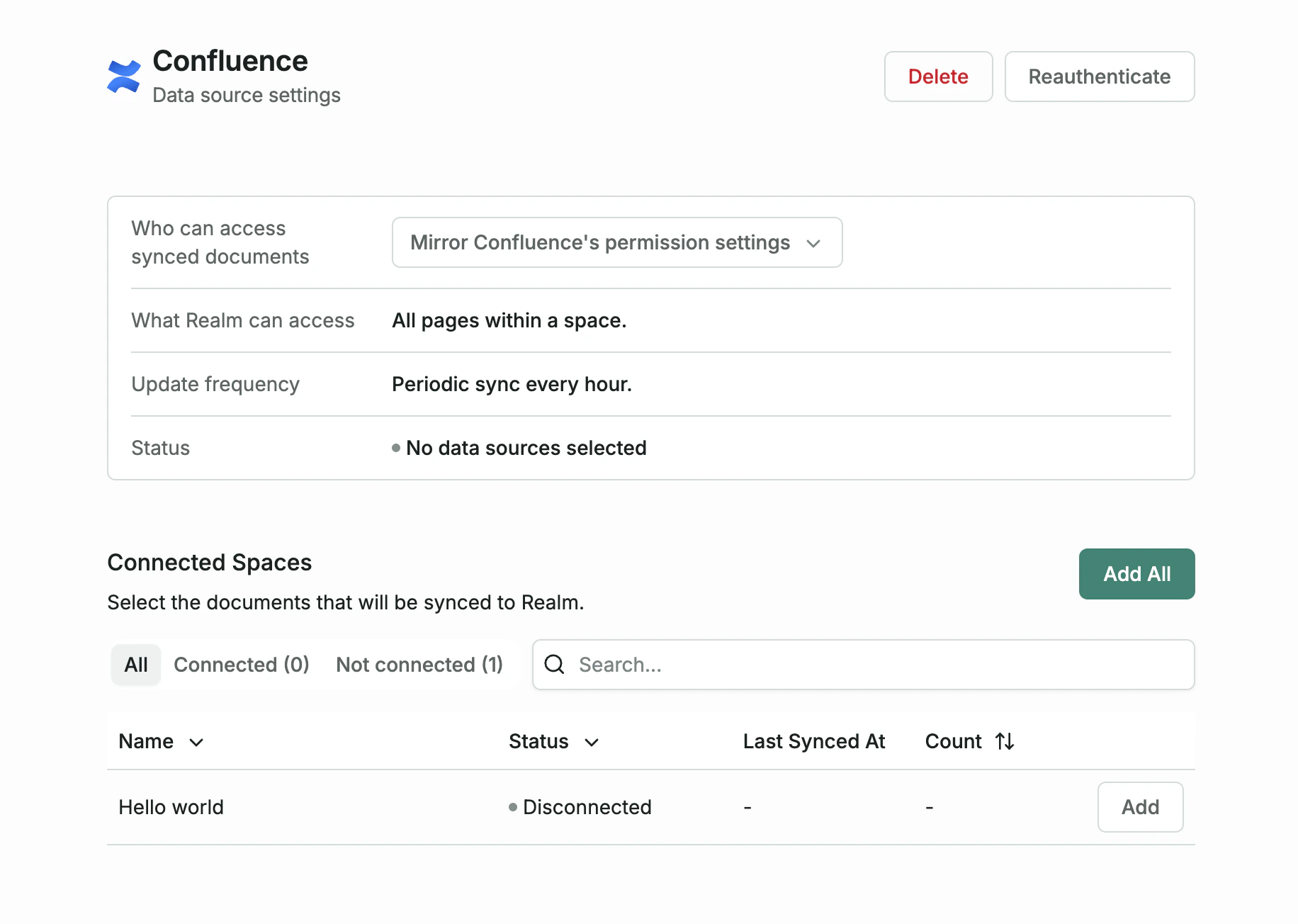
Selecting Confluence spaces to sync
Permissions
Realm enforces Confluence’s native permission model. Users can only see content they have access to in Confluence. You can override this by switching to “Everyone in this organization” on the data source settings page, which makes all synced Confluence data visible to all Realm users.Smart features
Realm integrates with Confluence’s content lifecycle:Confluence Data Center
For Confluence Data Center (self-hosted), connect using a Personal Access Token instead of the Marketplace app.- Follow Atlassian’s instructions to create a PAT. Disable “Automatic expiry” to prevent sync interruptions.
- Enter the token and your Confluence instance URL on the data source page in Realm.
- Select the spaces you want to sync.