

Before adding agents to Slack channels, the Realm Slack app must be installed in your workspace by an admin. See Slack app for setup instructions.
Adding an agent to a Slack channel
1
Invite Realm
In the desired Slack channel, type @Realm and add the Realm app.
2
Copy Channel ID
Click the channel name at the top and find the Channel ID at the bottom of the pop-up window.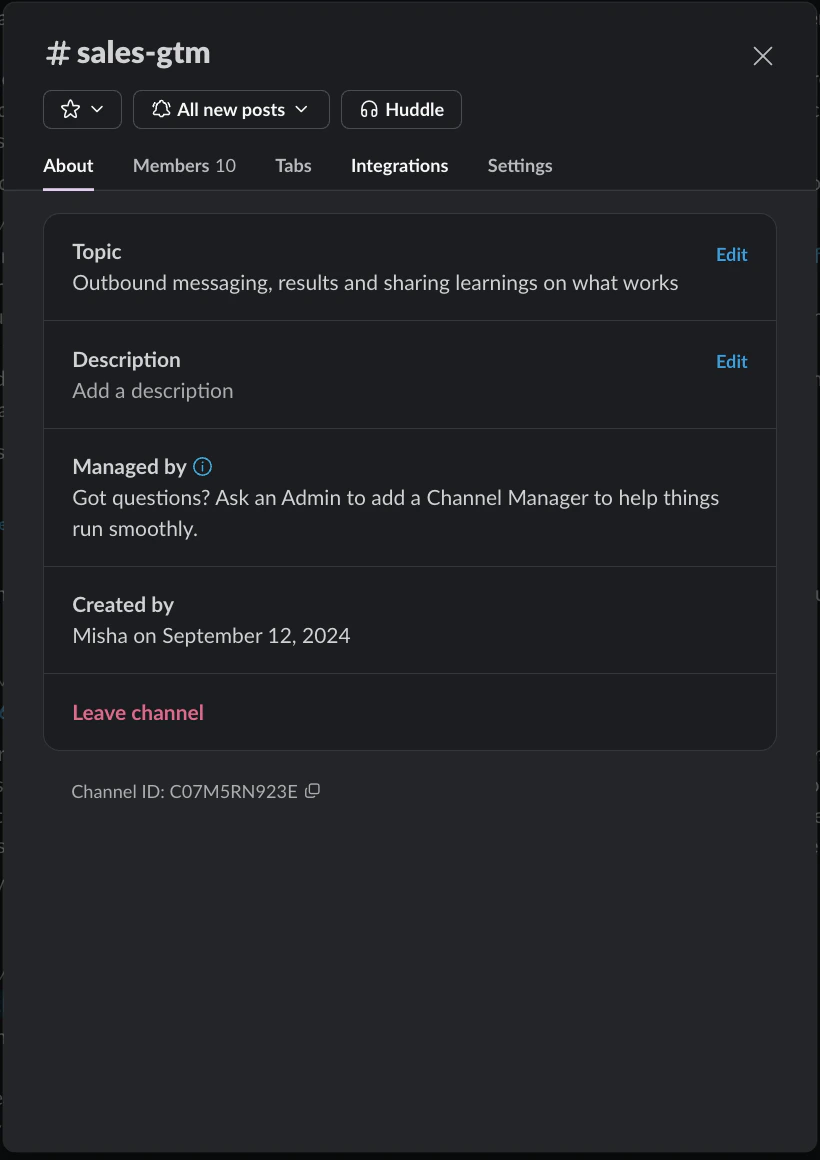
3
Configure the agent
In the Realm agent editor under Advanced Settings, paste the Channel ID into the Slack Integration section.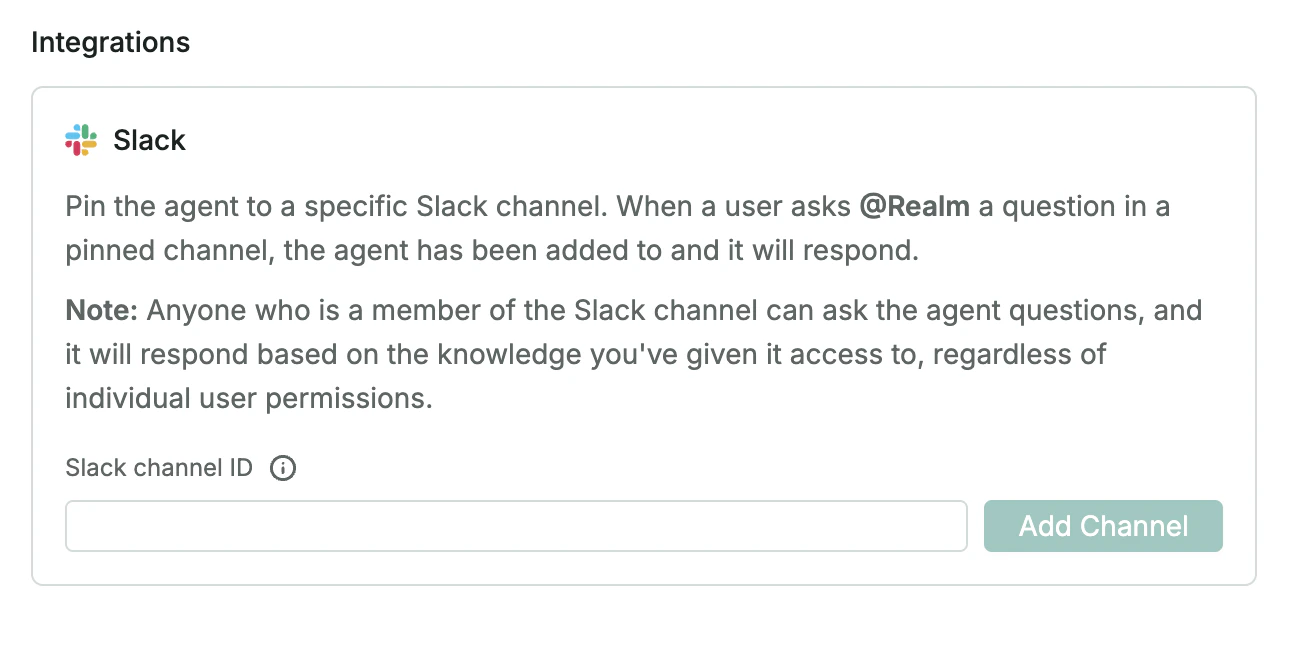
How to interact with an agent in a channel
Team members can mention the agent with the@ key followed by their question in the connected channel. The designated agent will post a threaded reply with the answer and source citations.
The way the answer appears depends on the Slack integration’s Public channel answer mode setting:
Admins can change this in the Slack data source settings under Public channel answer mode. Use Share if you want agents to reply directly in Slack threads without the private preview step.
When an agent is invoked from Slack, its normal response is sent back to the same Slack thread. You usually do not need to add or enable a separate Slack post-message tool for the agent to reply in that thread. Use the Slack post-message tool only when the agent should send a separate message to another channel, user, or thread; otherwise, it may create a new channel message instead of continuing the current thread.
Example use cases
- #sales-support: An agent trained on product documentation, pricing, and competitive battle cards.
- #customer-success: An agent connected to your CRM and support systems for quick customer account summaries.
Tips
- You can call a different agent than the default one by typing
@Realm <Agent name> <your question>. - If users see “Only visible to you” answers, the Slack integration is using Preview mode. Switch to Share mode to post answers directly to the thread.
- Do not add the Slack post-message tool just to answer Slack mentions. The agent’s final answer is already returned to the thread where it was invoked.
Only users with an active Realm license can interact with agents in Slack.