

Overview
Installation
Install the Realm browser extension from the Chrome Web Store. After installing, pin it to your toolbar for easy access.How to use the extension
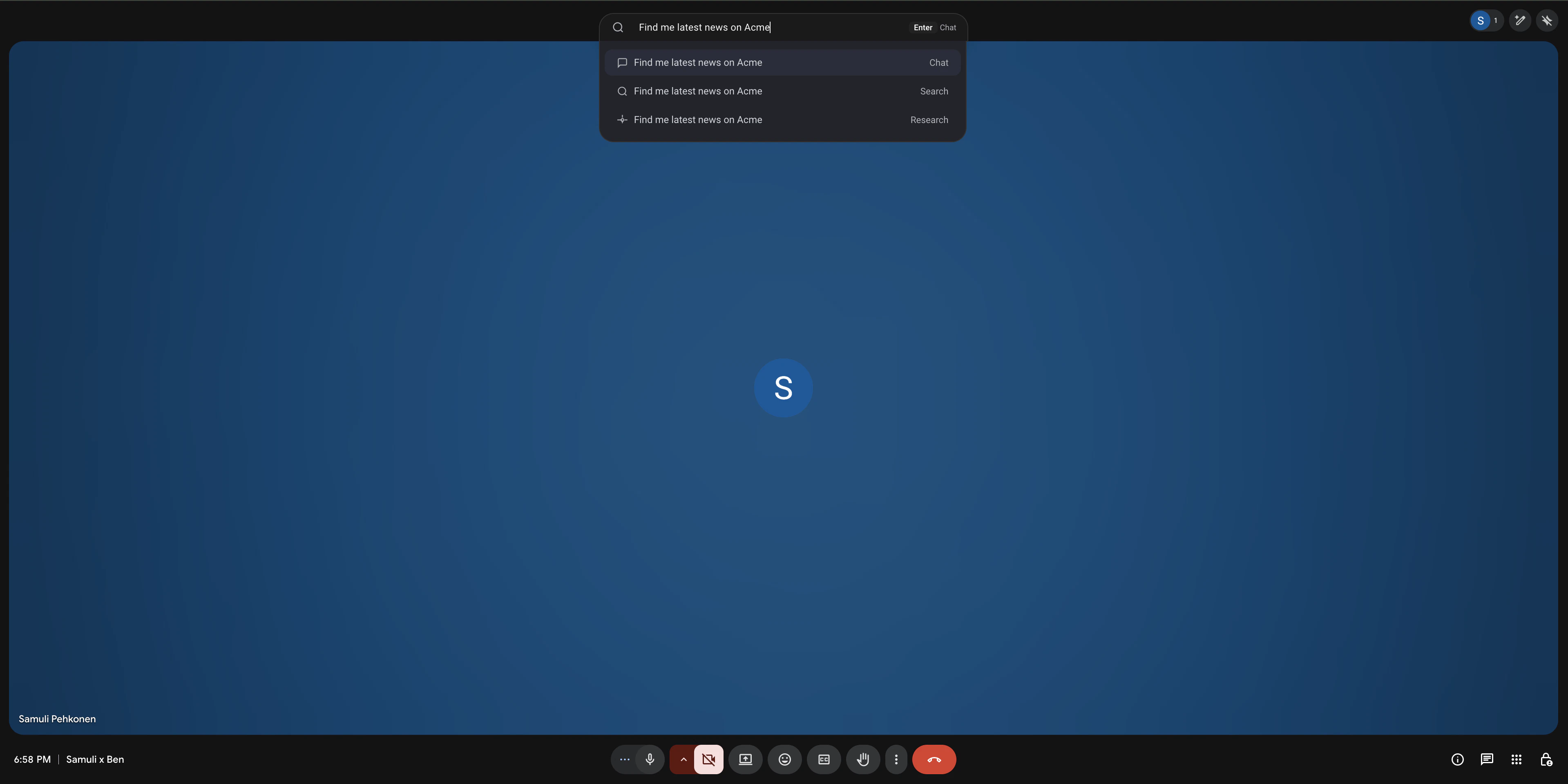
There are multiple ways to access the extension:Keyboard shortcut
Press Cmd+Shift+K (Mac) or Ctrl+Shift+K (Windows) on any webpage.
Address bar
Type r into your browser’s address bar, press Tab or Space, and then type your query.
Extension menu
Click the Realm icon in your browser’s extension menu to open the interface.
Right-click menu
Select any text on a webpage, right-click, and choose “Search with Realm” or “Chat with Realm”.
Features
Switch between Chat and Search
When you open the extension, you can choose between Chat and Search modes to find information in the way that works best for you.Set Realm as your new tab page
Configure Realm as your new tab page to give you quick access to the Realm Assistant and your custom Agents every time you open a new tab.Configuration and troubleshooting
Customizing the keyboard shortcut
Customizing the keyboard shortcut
Right-click the Realm extension icon, select Manage Extension, and then click Keyboard shortcuts.
Enabling/disabling the new tab override
Enabling/disabling the new tab override
Turn this on or off from the Preferences section in your Realm user settings.
Common issues
Common issues
The extension will not open as an overlay on internal browser pages (such as chrome://settings or edge://settings). On these pages, it will open Realm in a new tab instead.
Not logged in
Not logged in
Make sure you’re logged into Realm in your browser. The extension uses your existing session.
Address bar not working
Address bar not working
After typing
r, make sure to press Tab or Space before entering your query.